
How to extract text from an image
Add an image, compare the extracted text with the original, then copy it or save it as a TXT file.
Upload, paste, or photograph
Choose a screenshot, phone photo, label, receipt, or scanned page. The browser opens one still image at a time.
Extract the visible text
Your browser finds each line and turns supported writing into editable text without uploading the image.
Review, copy, or download
Compare uncertain lines with the highlighted image, edit the result, then copy it or save a TXT file.
OCR for screenshots, photos, receipts, and scans
Get better results from screenshots, phone photos, receipts, and scanned pages with a few simple adjustments.
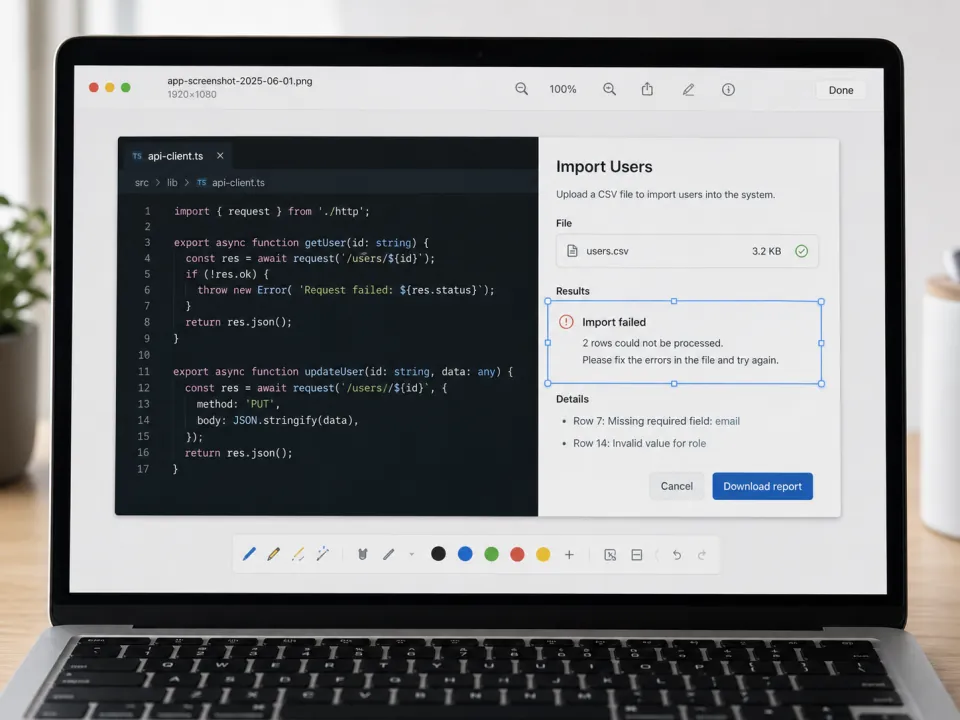
Screenshots and app messages
Use the original screenshot when you can. OCR can recover code, dialog text, labels, and error messages that are trapped inside an image.
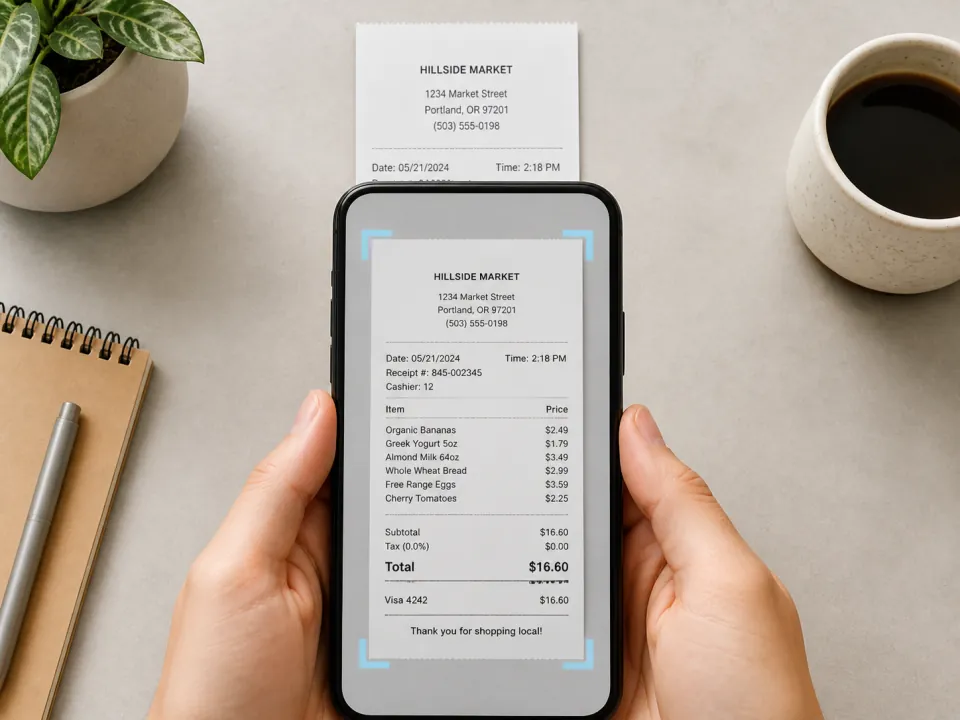
Phone photos and receipts
Fill the frame, avoid reflections, and hold the camera parallel to the page so small totals and labels stay sharp.
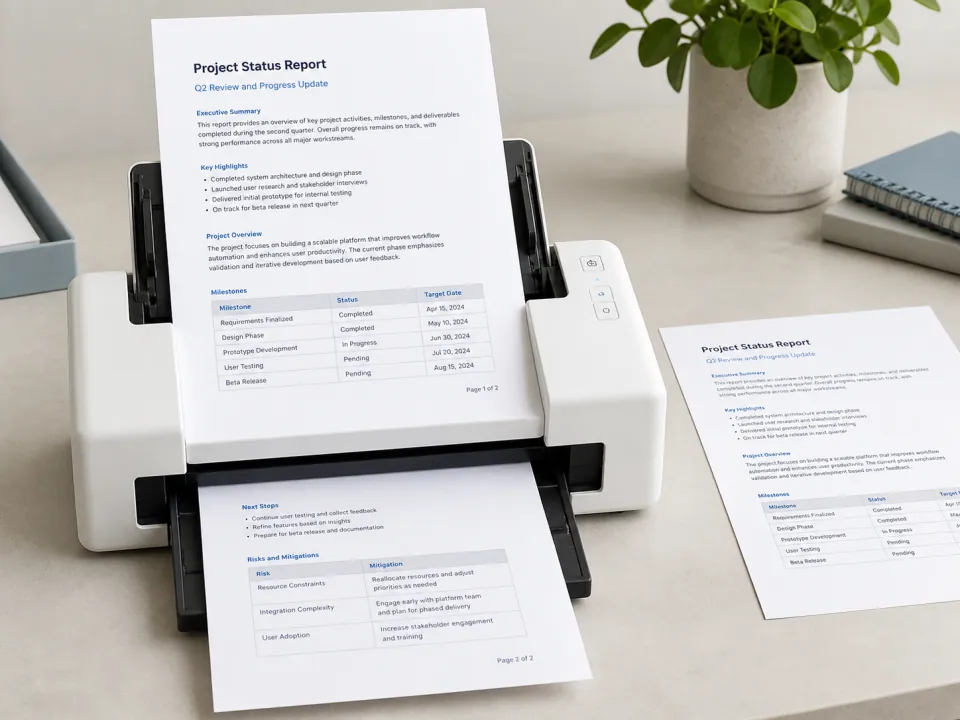
Scanned pages and records
Use the original scan when possible. Repeated compression and screenshots can soften thin characters and punctuation.
Improve OCR accuracy before you run it again
A better source image usually helps more than repeated recognition of the same blurred file.
Keep characters large and sharp
Move closer or use the original screenshot instead of a compressed message preview.
Make the text upright
Use Rotate when the page is sideways. Straight lines are easier to detect and order.
Reduce glare and shadows
Use soft, even light and avoid reflections that erase parts of letters or numbers.
Review confidence, not just the text
Highlighted low-confidence lines deserve a visual check, especially for names, totals, dates, and codes.
Your images stay private
Text extraction happens on your device. Your image and result are not sent to KitXL.
- Your image is processed in this browser.
- Your extracted text stays on this device.
- The first use downloads about 31 MB of files.
- Later visits may start faster after those files are saved.
- Refreshing the page clears your current image and text.
What you can do with the result
Use this tool when you need editable plain text. It does not recreate the original document design.
You can
- Extract lines from images, screenshots, photos, and scans
- Read text in 50 supported languages
- Highlight lines that may need checking
- Let you edit, copy, and download plain text
Not included
- Translate or summarize the recognized text
- Rebuild tables, columns, fonts, or page layout
- Read languages outside the supported list
- Store or share your image and result
Extract text in 50 languages
No language selection is needed. Upload an image containing Simplified or Traditional Chinese, English, Japanese, or any supported Latin-script language. Images with more than one supported language can also work, but you should check the result carefully.
Just upload your image—there is no language setting to change. You can also use an image that contains more than one supported language.
Check important details before using the text
Handwriting, curved labels, decorative type, vertical text, low resolution, glare, angled photos, and complex tables can lead to missing or incorrect characters. Compare names, dates, totals, codes, and other important details with the original image.
Always compare identity details, legal text, account numbers, totals, dates, measurements, and medical information with the original image.