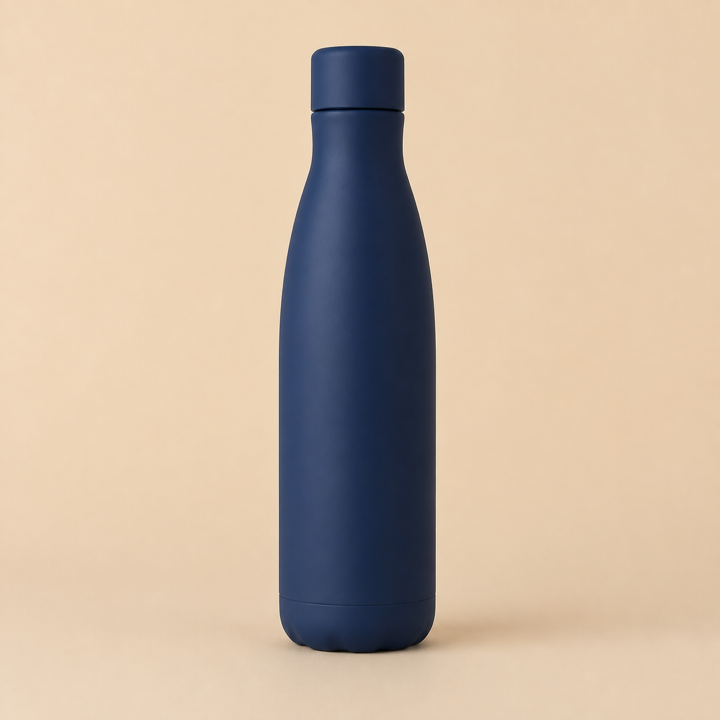
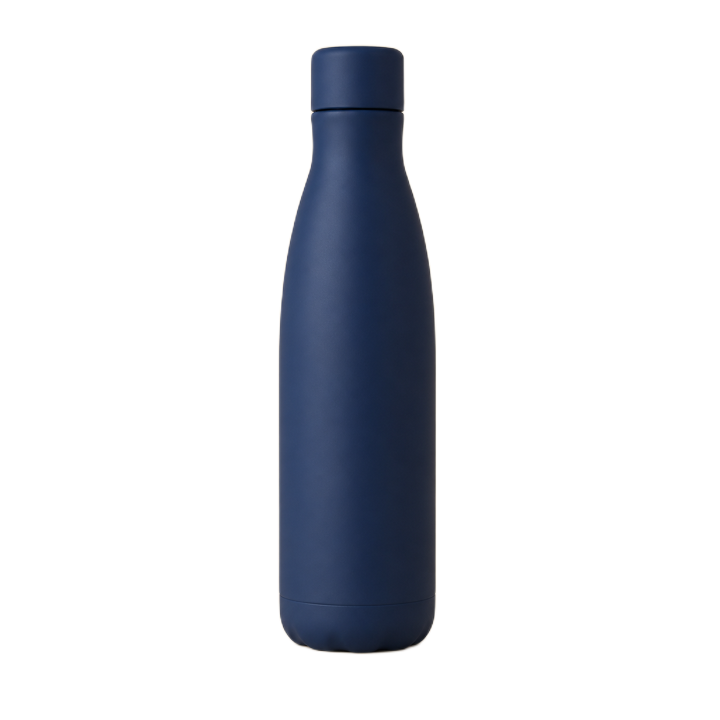
Product photo for an online listing
A plain contrasting backdrop gives the model a clear product edge and a clean transparent PNG.

Create a transparent PNG from a portrait, product photo, pet, or other clear subject. Review the cutout, restore missing details, and erase leftover background without sending the image to a server.
Your images are processed locally in your browser. They are never uploaded to a server.
Product photos, profile pictures, and car listings are common reasons to remove a background. Every processed example below was exported by the same local model used in this tool.
A plain contrasting backdrop gives the model a clear product edge and a clean transparent PNG.


Even lighting, tidy short hair, and solid clothing help produce a reliable cutout for profiles or resumes.
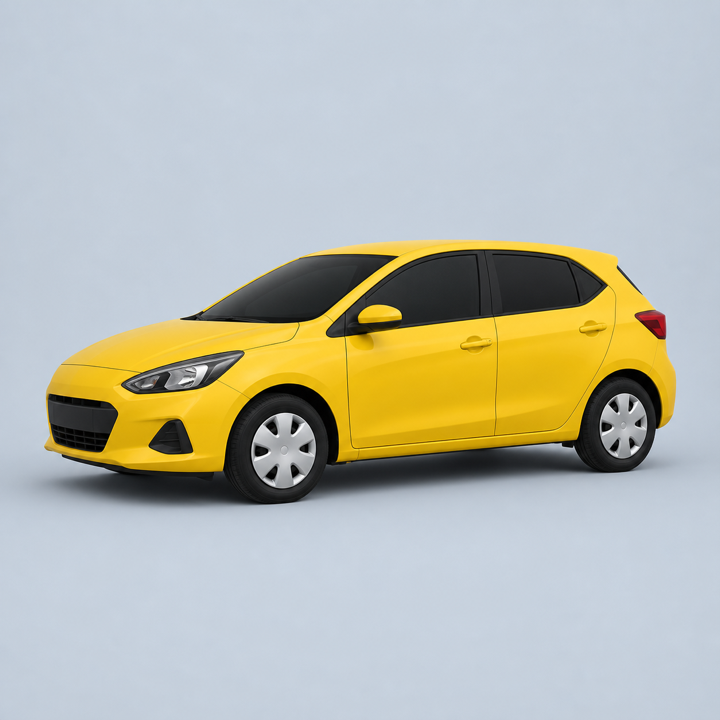
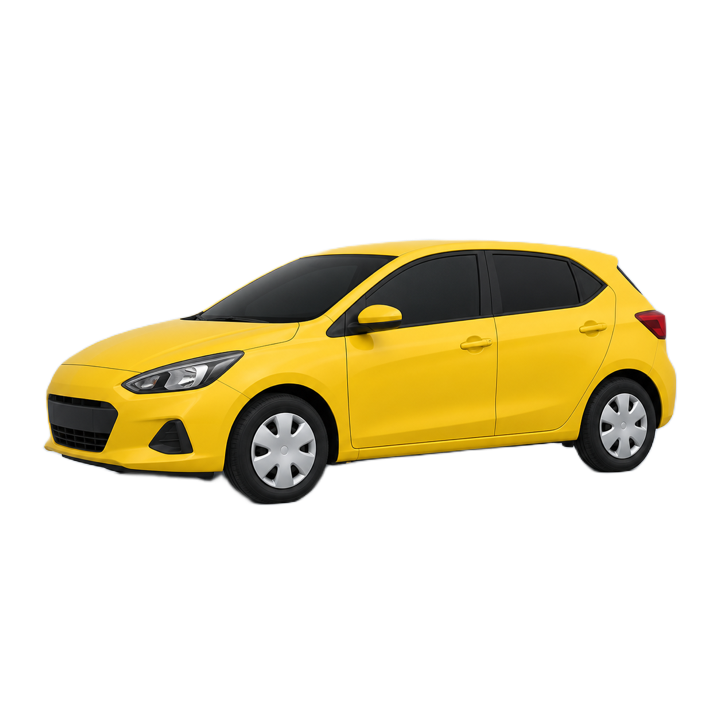
A complete vehicle on a simple background is easier to isolate for ads, listings, or design layouts.
Use the automatic result as a starting point, then spend manual effort only where the final image will be viewed closely.
Contrast, focus, and complete edges give the local model better information.
Product corners, clothing outlines, and vehicle edges that look good in a thumbnail can still need a small correction.
The PNG keeps the original width and height for design, listing, and profile workflows.
The image stays on your device. The first job downloads the model used by the browser; production compression normally transfers it in about 40 MB.
Your source image is not sent to KitXL for processing.
The model starts downloading only after you choose an image.
A cached model can make later visits faster.
Closing or refreshing the page clears the current editing session.
A cleaner photo can outperform a long manual edit. Try another image when the subject is heavily blurred, blends into the background, is covered by dense shadows, or is already cut off at the frame.