1. Add your PDF
Choose, drag, or paste one PDF from your device.

Remove unwanted pages from a PDF and save a new file containing only the pages you keep.
Your PDF is processed in your browser. It is never uploaded to a server.
Drop one PDF here, paste it from your clipboard, or choose a file. You can remove one page, several pages, or page ranges.
PDF files only. Maximum 50 MB and 50 pages.Click page thumbnails for a visual review or enter exact page numbers when you already know what should be removed. The remaining-page count updates before you export.
Create a cleaned-up PDF in three clear steps.
Choose, drag, or paste one PDF from your device.
Click thumbnails or enter individual page numbers and ranges such as 2, 6-8, 12.
Confirm which pages will remain, create a separate PDF, and download it to your device.
Unwanted pages often come from scanning, combining, revising, or preparing documents for someone else. These examples focus on removing complete pages, not hiding part of a page.
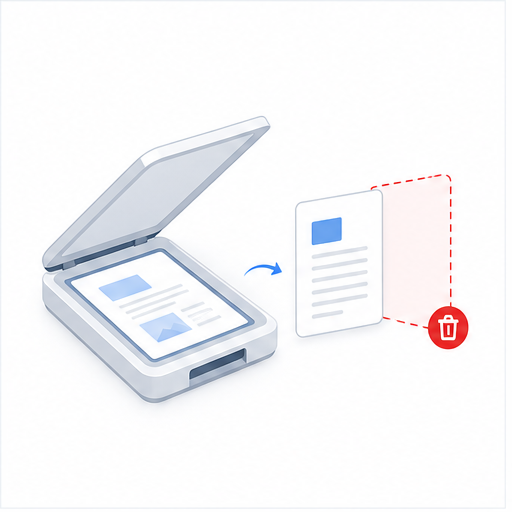
Double-sided scanning can add blank backs or separator sheets between real documents. Review each faint or empty thumbnail, remove only the pages you do not need, and keep the useful scans together.
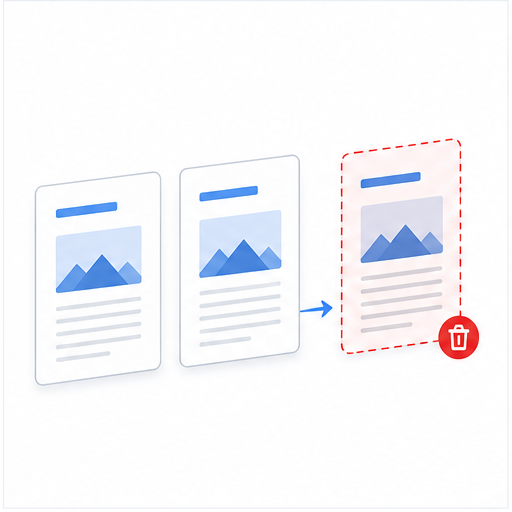
A feeder may pull the same sheet twice, or a combined PDF may contain repeated pages. Compare the neighboring thumbnails, mark the duplicate copies, and keep one correct version in the new PDF.
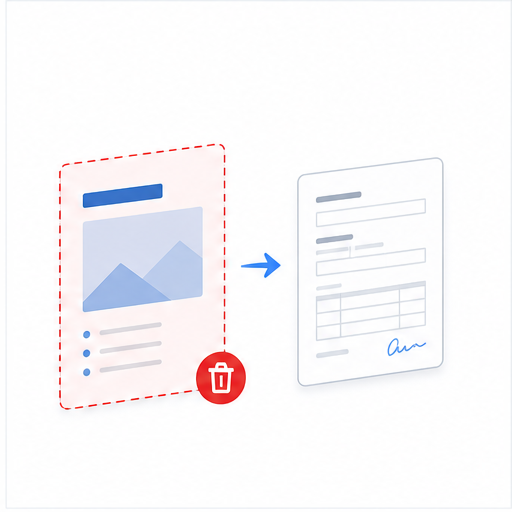
Application portals may expect only the completed form and supporting evidence. Delete an outdated cover sheet, unused instruction page, or accidental blank page before submitting the PDF.
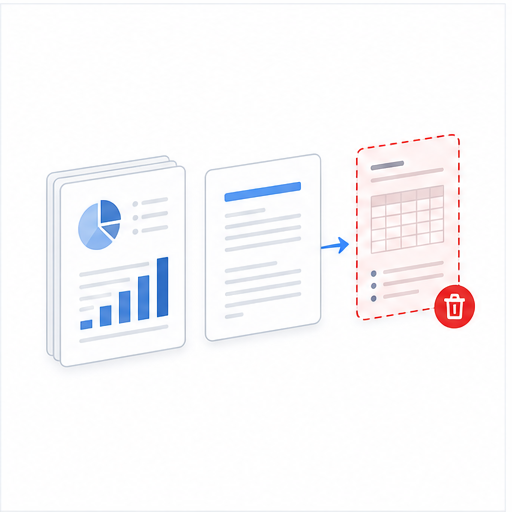
A client report, proposal, or board pack may include an old price table, draft section, or internal appendix. Remove those complete pages while preserving the current report and its page order.
A packet may include a bank statement, ID copy, signature sheet, or internal notes meant for another audience. Delete those entire pages before sharing; use a dedicated redaction tool when only part of a page must be hidden.
Teachers and administrators can remove answer keys, duplicate handouts, blank separators, or expired notices before distributing or archiving a cleaner PDF.
The PDF is read, previewed, changed, and exported inside your browser. Contracts, applications, statements, IDs, and records stay on your device, with no account or email address required.
Removing pages does not compress the pages you keep or turn them into images. Bookmarks, internal links, and page labels may need review, and existing digital signatures can become invalid.