1. Add your PDFs
Choose, drag, or paste two or more PDF files from your device.

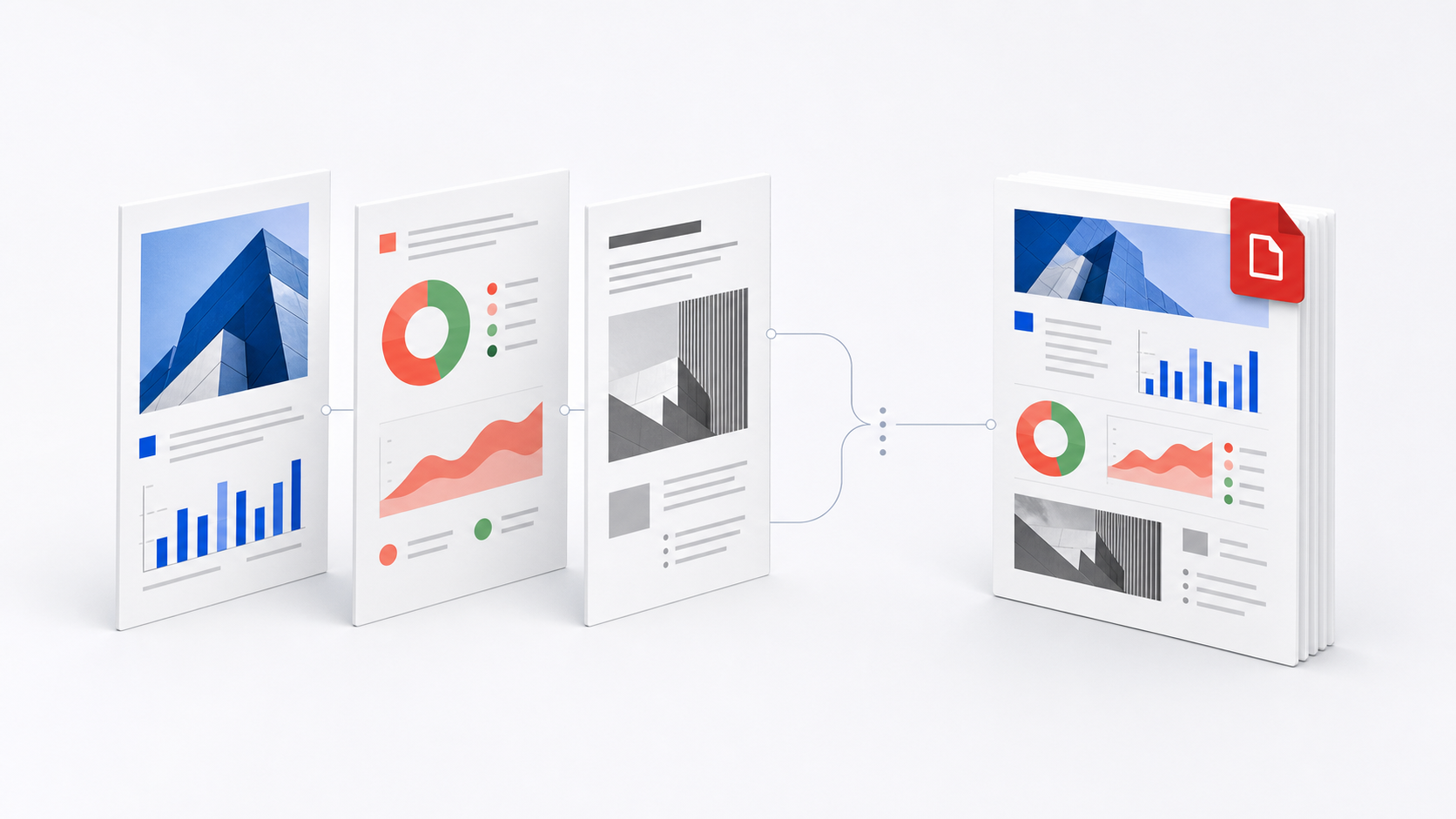
Combine multiple PDF files into one document in the order you choose.
Your PDF files are processed in your browser. They are never uploaded to a server.
Drop multiple PDFs here, paste them from your clipboard, or choose files. You can arrange their order before merging.
PDF files only. Files are processed in your browser and never uploaded.Arrange whole PDF files before merging them into one document. Pages from the first file stay first, followed by every file in the order shown.
Your PDFs are combined from first to last in the order you choose.
Combine PDF files into one document in three straightforward steps.
Choose, drag, or paste two or more PDF files from your device.
Drag files or use the arrow buttons until the final page order is correct.
Create one combined PDF and download it directly to your device.
Combine related documents into one shareable PDF when a portal, reviewer, client, or print workflow needs a complete packet rather than separate files.
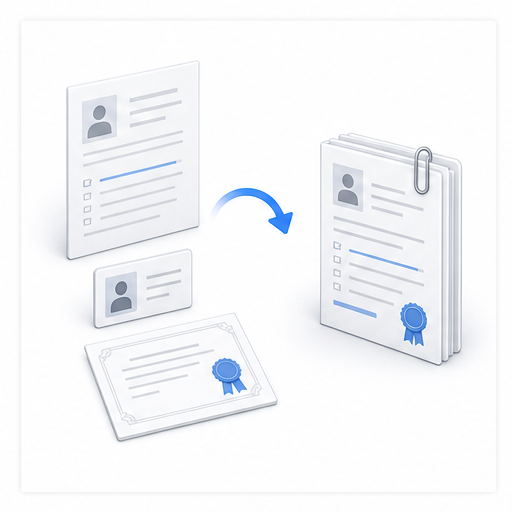
For school, job, or government submissions, merge the main form, ID document, transcript, and certificates in the order required by the checklist.
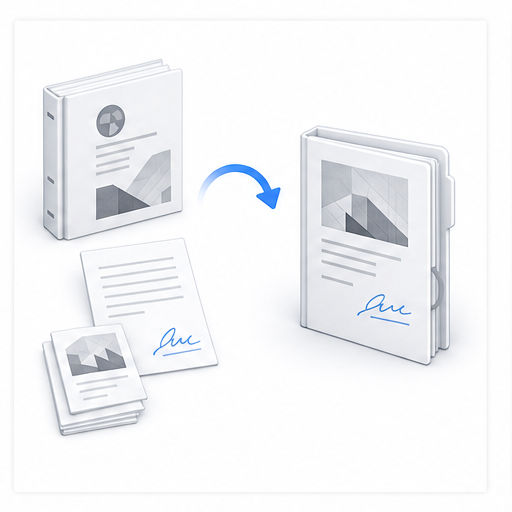
Send a complete contract packet by joining the agreement, signature pages, approvals, and appendices. Preserve the signed original; edited PDFs may need to be signed again.
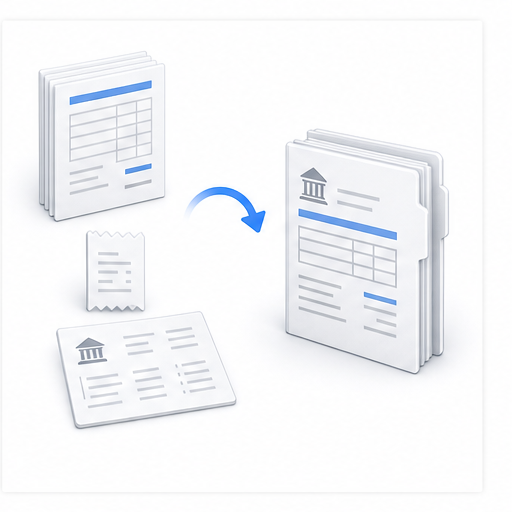
Create one finance PDF for an expense claim, monthly records, or accounting review instead of emailing separate invoice and receipt files.
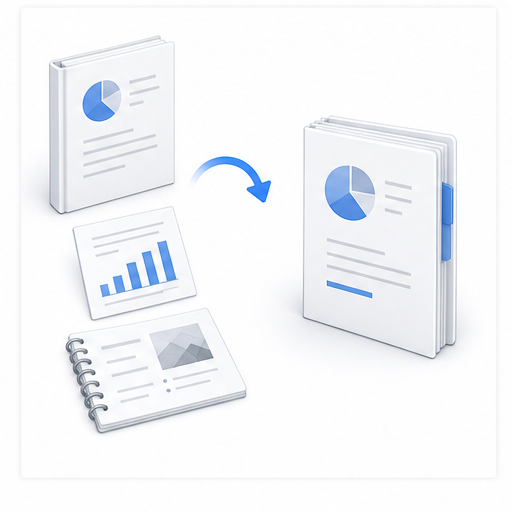
Place the cover, report body, charts, and supporting material in one reader-friendly file before sharing it with a client, manager, or reviewer.
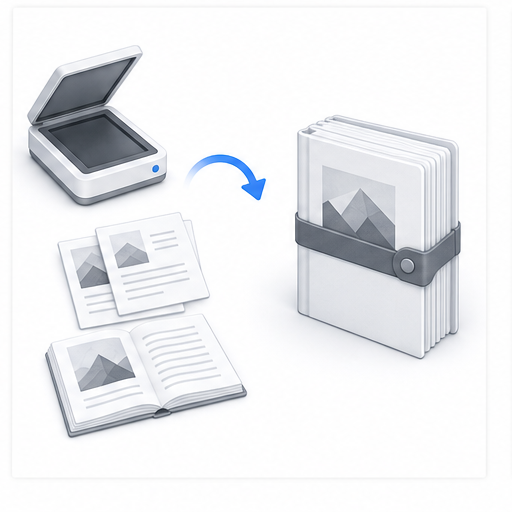
After scanning a file in batches, merge the resulting PDFs into one archive copy. Review their order before export so the record reads continuously.
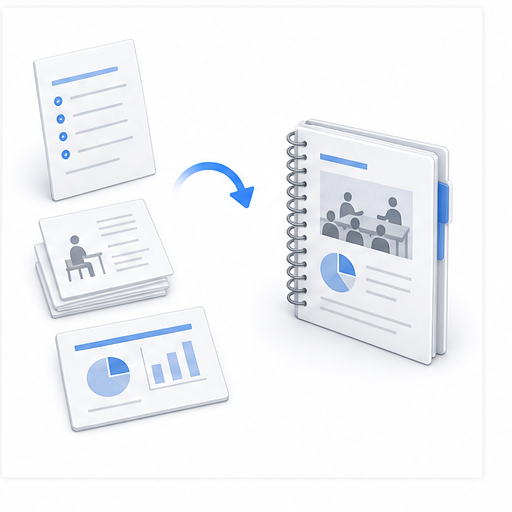
Combine an agenda, handouts, reference pages, and presentation material so attendees or a printer receive one complete, ordered file.
The merge runs in your browser, so your documents never leave your device. There is no account to create, no email to provide, and no watermark is added.
Merging keeps the existing page content and visual quality, and no watermark is added. The merged file can be larger than expected, and digitally signed PDFs may lose signature validity after editing.