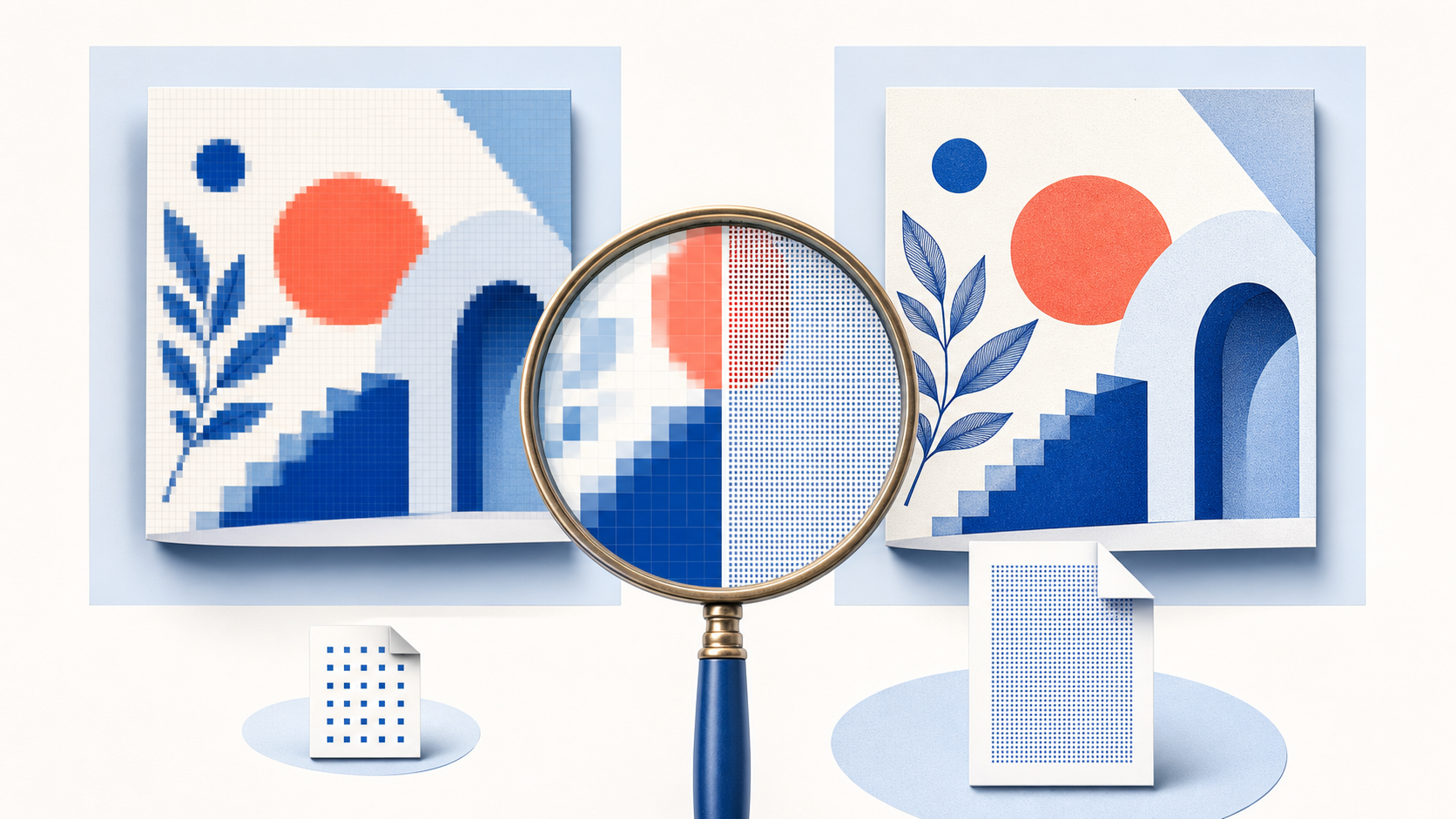
Turn PDF pages into clear PNG images for page excerpts, diagrams, and detailed review.
Your PDF files are processed locally in your browser. They are never uploaded to a server.
Choose a PDF to convert
Drop a PDF here, paste from your clipboard, or choose a file. Your PDF stays in your browser.
PDF files only. Pages are converted locally and never uploaded.
What DPI means for PDF to PNG
DPI sets the pixel density used to render a PDF page as a PNG. The page content stays the same, but a higher DPI creates a larger image with more pixels for close inspection, at the cost of a larger file.
PNG output
A clear PNG page for text, lines, and screenshots
Choose PNG when you want a clean image version of a rendered PDF page. It is useful for diagrams, page excerpts, and screenshots with text or fine lines.
150 DPI for sharing, screens, and smaller downloads
300 DPI or a custom setting for a larger output
A larger DPI creates larger PNG files
Choose 150 DPI for screen viewing and smaller downloads. Choose 300 DPI when you need a larger PNG for closer inspection; your output size also depends on the PDF page you convert.
Convert every PDF page to PNG, or select only the pages you need
Use all pages for a complete PDF to PNG conversion, or enter a range such as 1-3, 5, 8-10. A single selected page downloads as PNG. Multiple PNG pages are grouped into one ZIP file in page order.
PDF
Choose pagesAll pages or an exact range
page-01.pngpage-02.pngpage-03.png
One ZIP downloadFor multiple converted pages
When PDF to PNG is the right format
PNG saves the rendered page without additional lossy compression. Choose a different format when smaller files matter more than preserving fine lines and text edges.
Diagrams and interface captures
PNG can be a practical choice for page excerpts with sharp lines, labels, and screenshots that need a clean raster copy.
Specific pages from a long PDF
Export only the pages you need instead of creating image files for the entire document. The selected-page ZIP stays easier to review and share.
Transparent PDF content
PNG can retain genuinely transparent areas in the source PDF. It does not remove a white page background or make a scanned page transparent.
FAQ
No. PDF to PNG runs locally in your browser, so the PDF stays on your device while it is converted.
Yes. You can convert PDF pages to PNG images in your browser without installing software or sending the PDF to a server.
Choose 300 DPI before converting. It renders more pixels for small text, diagrams, and close inspection, and it also creates larger PNG files.
Yes. Select all pages to create a PNG for every page. You can download each converted PNG separately or save every page together in one ZIP archive.
PNG can retain genuinely transparent areas already present in the PDF. It does not remove a white page background or make a scanned document transparent.