Use all pages or choose the page numbers you need.
Choose a preset or custom DPI, then set JPG quality.
Get one JPG or a ZIP with every converted page.

Turn PDF pages into JPG images at a resolution that works for sharing, previews, and print review.
Your PDF files are processed locally in your browser. They are never uploaded to a server.
Drop a PDF here, paste from your clipboard, or choose a file. Your PDF stays in your browser.
PDF files only. Pages are converted locally and never uploaded.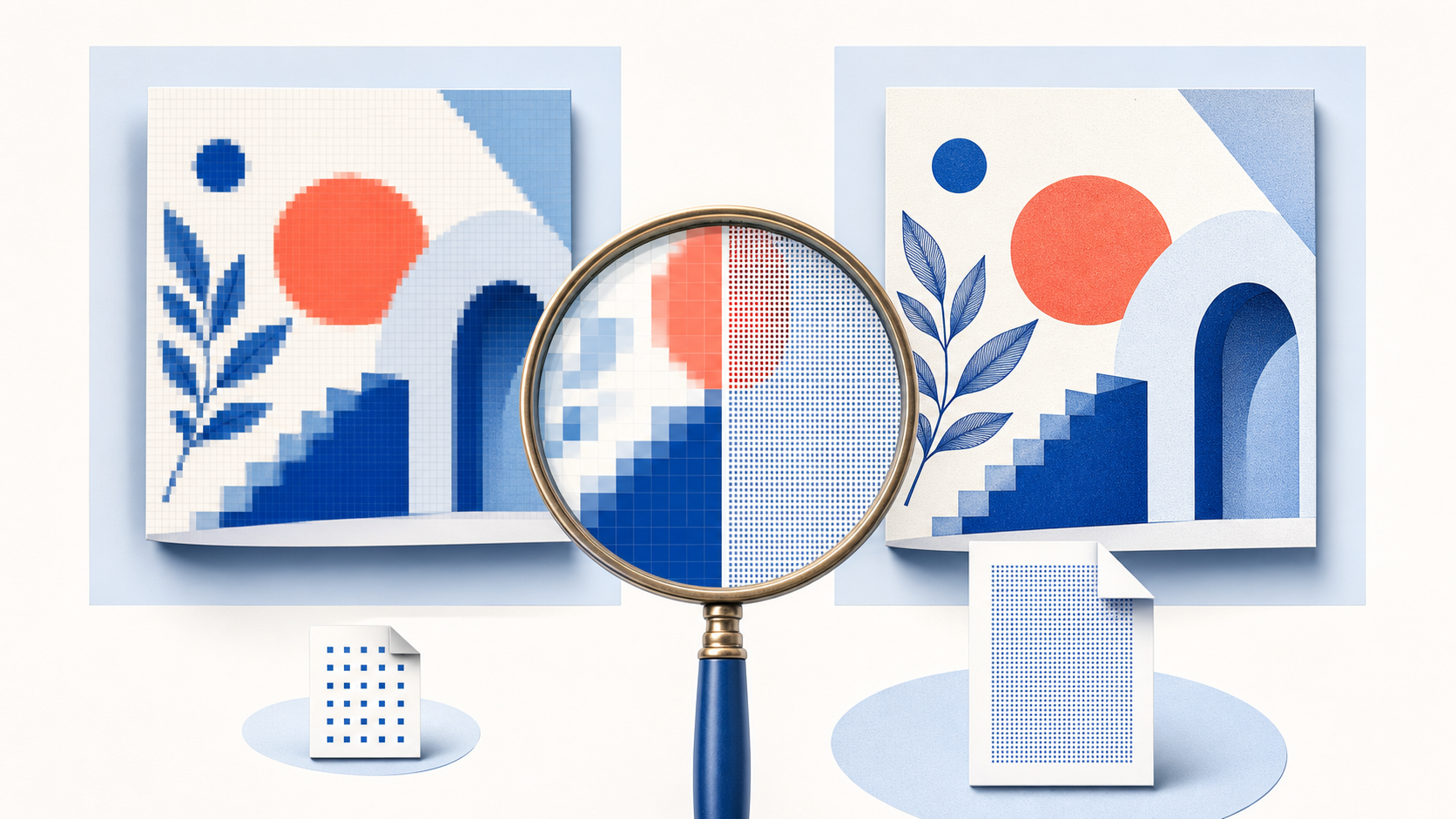
DPI controls how many pixels are created when a PDF page becomes a JPG. It does not add detail that is missing from the original PDF, but a higher DPI gives you more pixels to inspect, crop, or print.
Export every page or enter a page range such as 1-3, 5, 8-10. One selected page downloads as JPG; multiple pages are packaged in a ZIP file so the original page order stays clear.
Use all pages or choose the page numbers you need.
Choose a preset or custom DPI, then set JPG quality.
Get one JPG or a ZIP with every converted page.
Resolution changes the number of pixels in each JPG. It does not recover detail that is not present in the source PDF, but 300 DPI gives you a larger raster output when the rendered page needs close inspection.
Start with 150 DPI when you need smaller JPG files for messages, web pages, forms, or a quick visual preview.
Choose 300 DPI for diagrams, scanned documents, or print workflows where the output needs more visible detail.
A custom page range avoids creating unnecessary images from a long PDF and keeps the download easier to manage.