1. Add your PDF
Choose, drag, or paste one PDF file from your device.

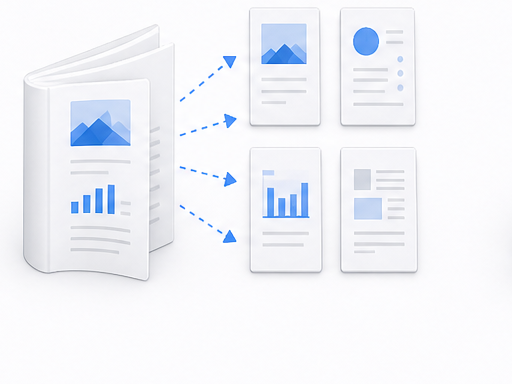
Extract page ranges or divide one PDF into separate documents.
Your PDF is processed in your browser. It is never uploaded to a server.
Drop one PDF here, paste it from your clipboard, or choose a file. You can extract ranges or divide every page.
PDF files only. Files are processed in your browser and never uploaded.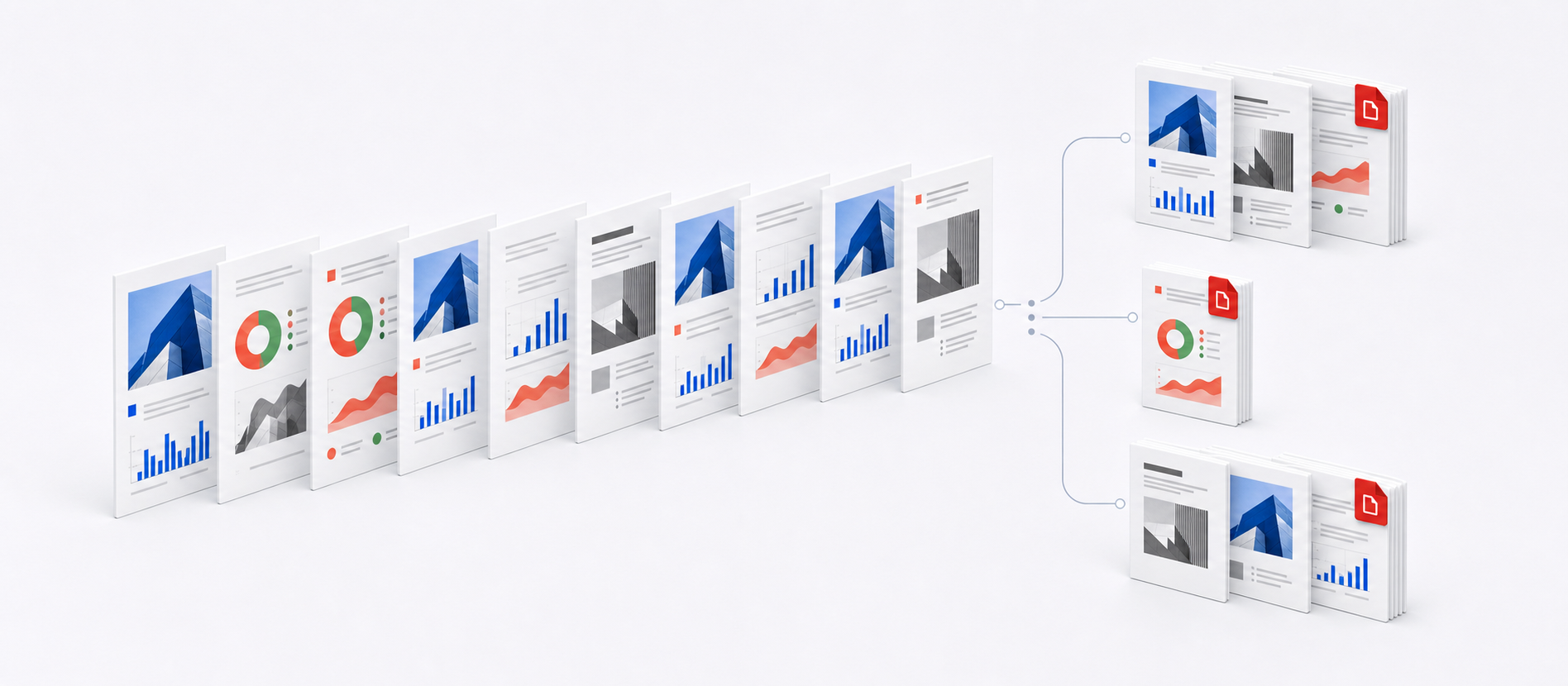
Choose the pages you need and review each output group before creating new PDFs. Pages outside the selected ranges stay out of the result.
Create separate PDF files in three straightforward steps.
Choose, drag, or paste one PDF file from your device.
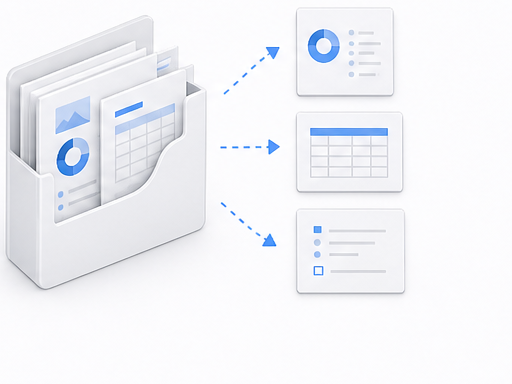
Enter page ranges, split every page, or set a fixed number of pages per PDF.
Create the PDFs, download them separately, or get all files in one ZIP.
Contracts, textbooks, scans, and large reports call for different page ranges and output sizes. These examples show when each approach is useful.
Signature pages and supporting exhibits are often buried near the end of a long agreement. Select only those pages to create a focused PDF for countersigning, HR records, or legal review.
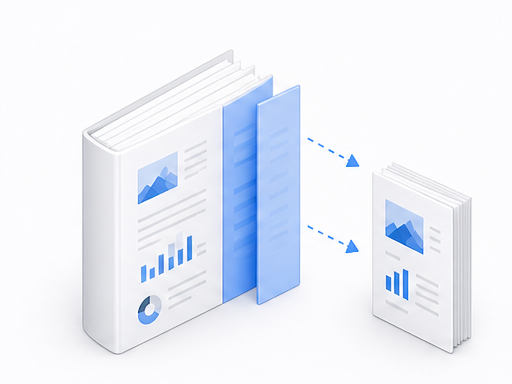
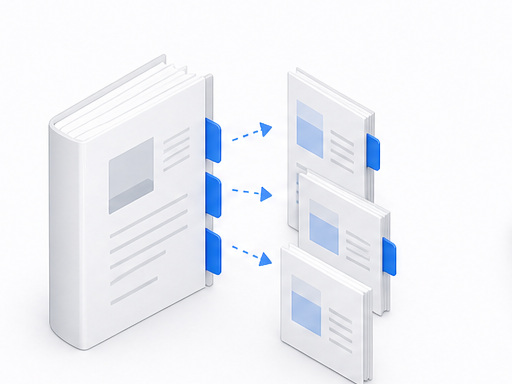
Use a page range to pull the chapter you need from a long ebook, textbook, or research collection. The smaller chapter PDF is easier to assign, share, annotate, and archive.
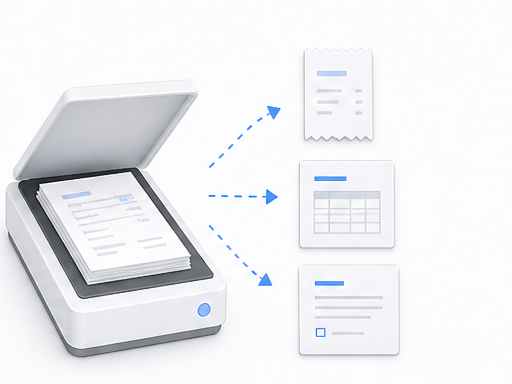
A single batch scan can contain many unrelated business documents. Split the scanned PDF by page or range, then download individual files or a ZIP for renaming and archiving.
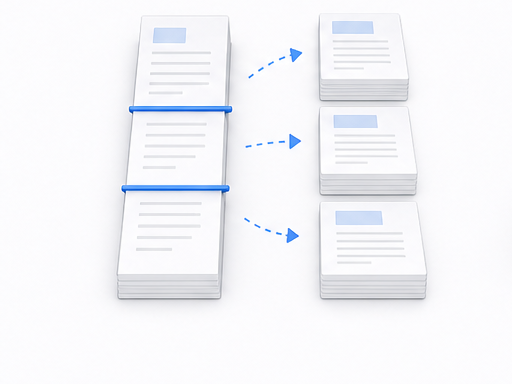
A long report or proposal may exceed a mail service’s attachment limit. Split it every 10 or 20 pages to create smaller PDFs for staged review or separate email delivery.
Visa, insurance, court, and government portals may require each document as a separate upload. Split a multi-page scan into one PDF per page and download all page files together as a ZIP.
Combined statement PDFs often contain separate sections for several accounts or account holders. Enter each section’s page range to create independent PDFs for secure sharing, reconciliation, and filing.
The split runs in your browser, so your document never leaves your device. There is no account to create, no email to provide, and no watermark is added.
Splitting copies the selected pages into new PDF files without compressing them or turning them into images. Existing text, vectors, images, and page sizes remain unchanged, though digital signatures may lose validity after editing.