1. Add your PDF
Choose, drag, or paste one PDF from your device.

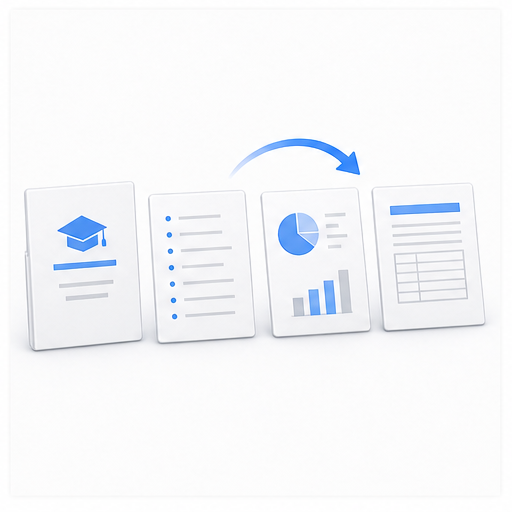
Move PDF pages into the right reading order and save one updated file.
Your PDF is processed in your browser. It is never uploaded to a server.
Drop one PDF here, paste it from your clipboard, or choose a file. You can drag one page or move several selected pages together.
PDF files only. Maximum 50 MB and 50 pages.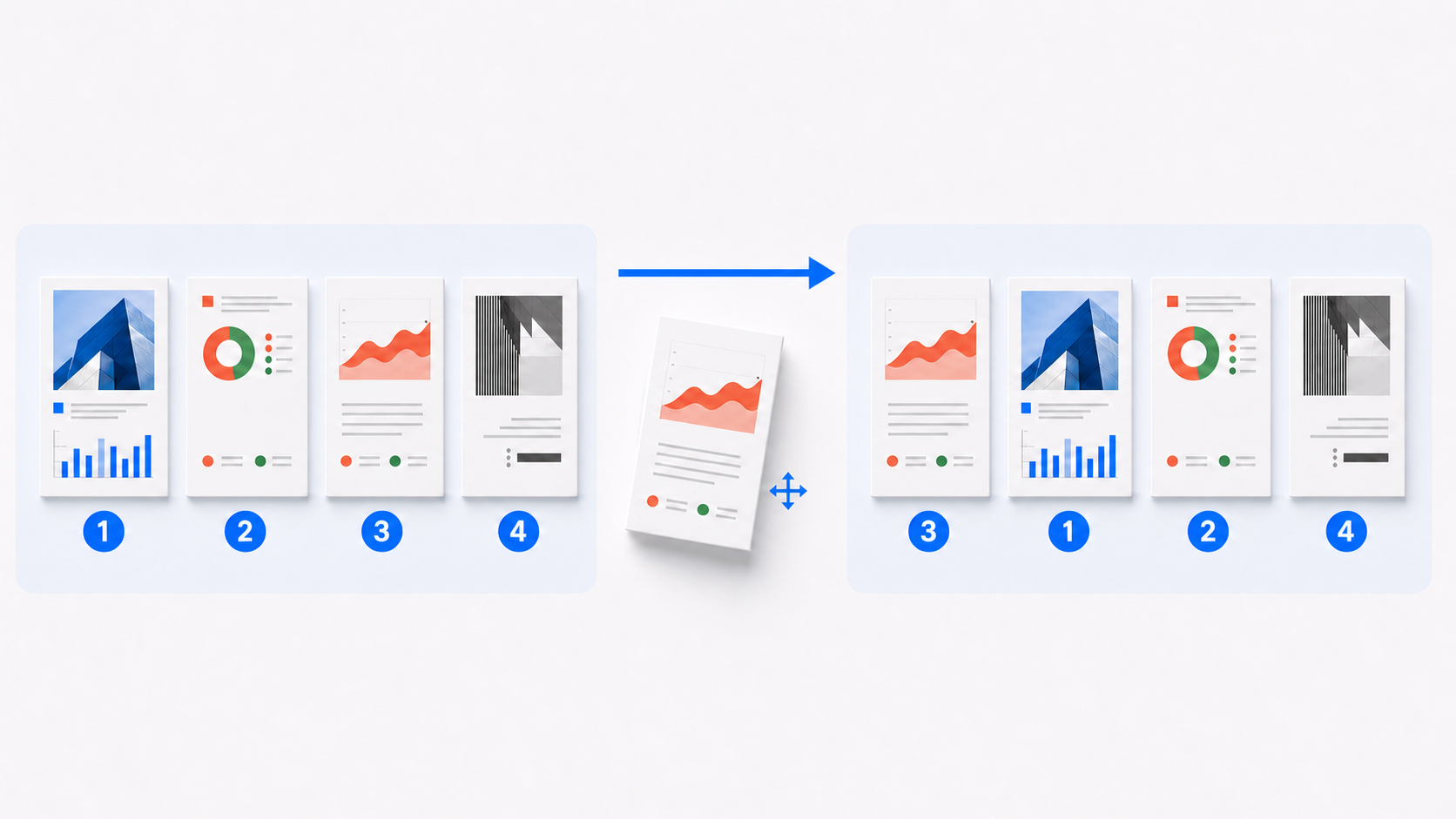
Each thumbnail keeps its original page number while its position changes. This makes it easier to compare the source sequence with the order you will export.
Create a PDF with the correct reading sequence in three steps.
Choose, drag, or paste one PDF from your device.
Drag thumbnails, use the arrow controls, move selected pages, or reverse the complete sequence.
Check the first page, final page, and every section boundary, then export one reordered PDF.
Fix a scan saved backward, organize a merged PDF, or put applications and reports into the required reading order before you share or submit them.
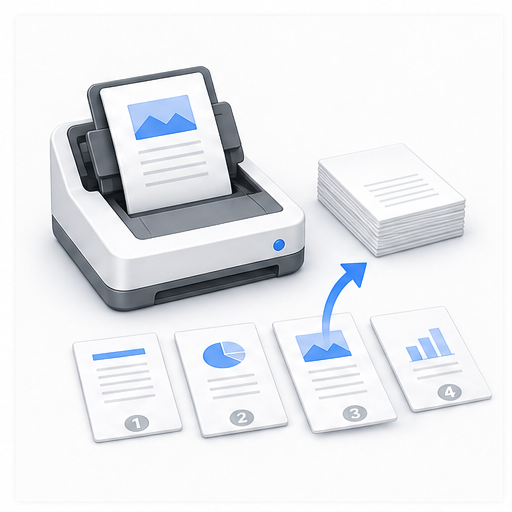
Batch scanning can skip, misplace, or save a stack from the last page first. Drag forms, receipts, and supporting pages back into sequence; reverse the whole PDF when every page is backward.
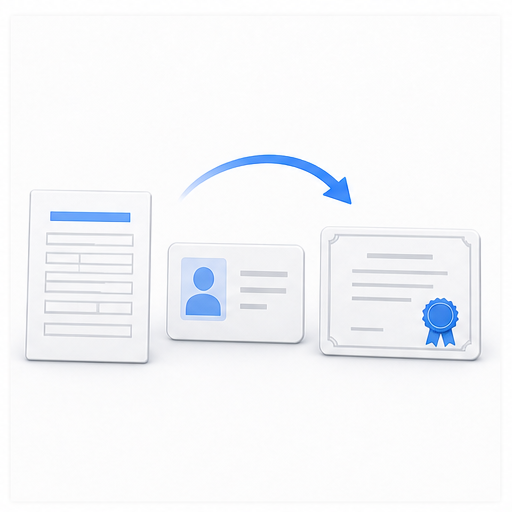
Before submitting school, job, or government paperwork, put the main form, identity document, transcript, and certificates in the sequence requested by the checklist.
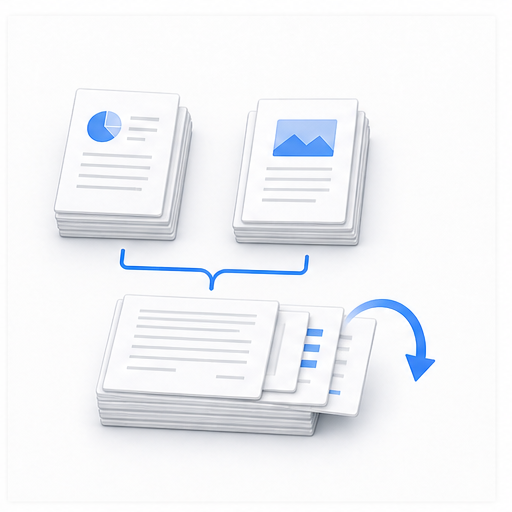
A merged PDF often keeps the order in which files were added. Move statements, evidence, or exported sections beside the material they support without merging the source files again.
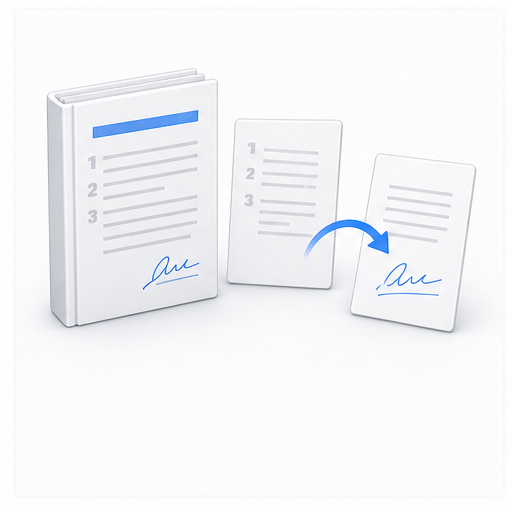
Keep signed pages, approval forms, and contract exhibits beside the relevant terms or record. Keep the original signed document for verification; a changed PDF may need to be signed again.
Before sending a report, proposal, or thesis, check that the cover and contents come first and that each chart, section, and appendix follows the reading order your reviewer expects.
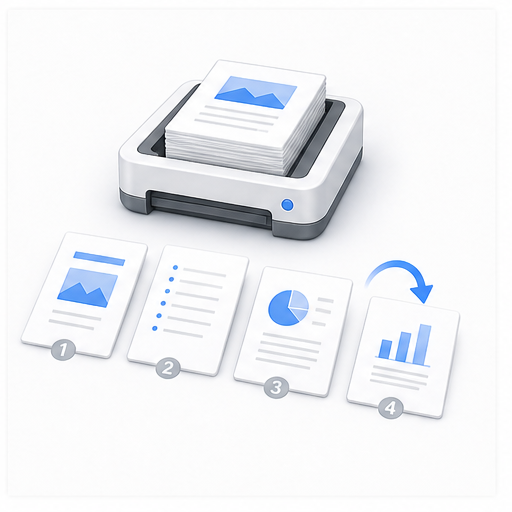
Move pages into the required reading or print sequence for class handouts, meeting packs, and manuals. This tool changes PDF page order; it does not create printer imposition.
Reading, previewing, moving pages, and exporting happen inside your browser. Contracts, statements, applications, and internal reports remain on your device, with no account or email address required.
Only the page sequence changes; text, vectors, images, annotations, and page dimensions are preserved. Review bookmarks, internal links, printed page numbers, and PDF page labels; existing digital signatures may become invalid.