
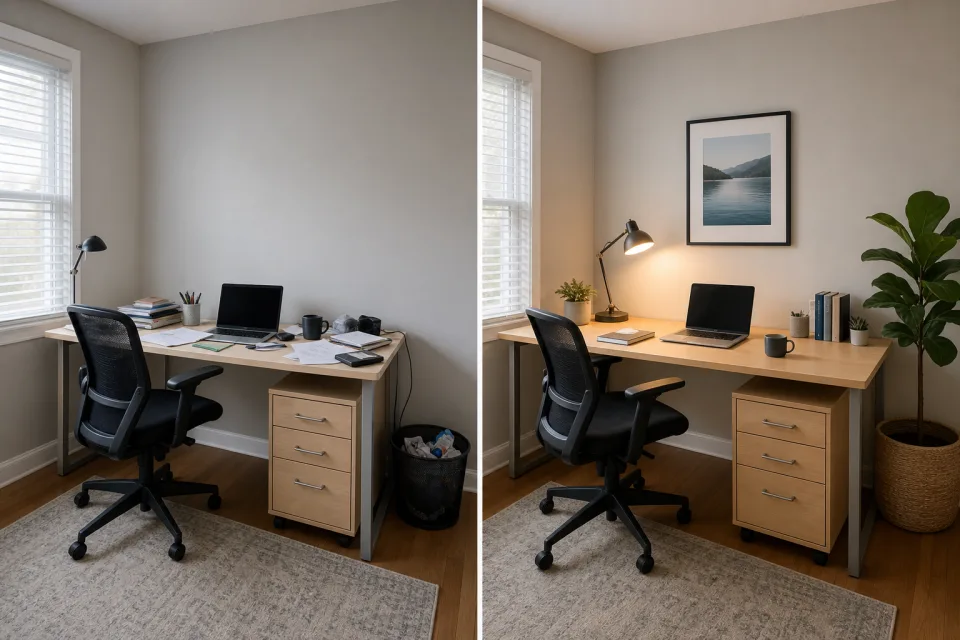
2 photos · Side by side
Before-and-after collage
Place two related views next to each other when the comparison is the story. A two-photo collage works well for a room makeover, progress update, product change, or any clear before-and-after pair.

Arrange 2–9 photos into one editable collage, then save a PNG or JPEG without uploading your images.
Your images are processed locally in your browser. They are never uploaded to a server.
Choose at least two photos. You can add up to nine and change their order later.
Choose 2–9 photos to start. Then you can pick a layout, protect the important part of each crop, and download one finished image.
Choose JPG, PNG, WebP, or AVIF files from your device.
Switch between equal grids and feature-photo layouts.
Select a cell, then zoom or move its crop into place.
Export one 1600-pixel PNG or JPEG collage.
Start with what the finished collage needs to show. These examples use the same count-based layouts available in the editor, without decorative templates or extra effects.
2 photos · Side by side
Place two related views next to each other when the comparison is the story. A two-photo collage works well for a room makeover, progress update, product change, or any clear before-and-after pair.

4 photos · Balanced grid
Use a four-photo grid to give the cake, decorations, gifts, and people equal weight. It creates a compact birthday recap without requiring a greeting-card template.

4–9 photos · 1:1, 4:5, or 9:16
Combine several moments before you post: choose 1:1 or 4:5 for a feed image, or 9:16 for an Instagram Story. Download the finished JPEG or PNG, then publish it from your device.
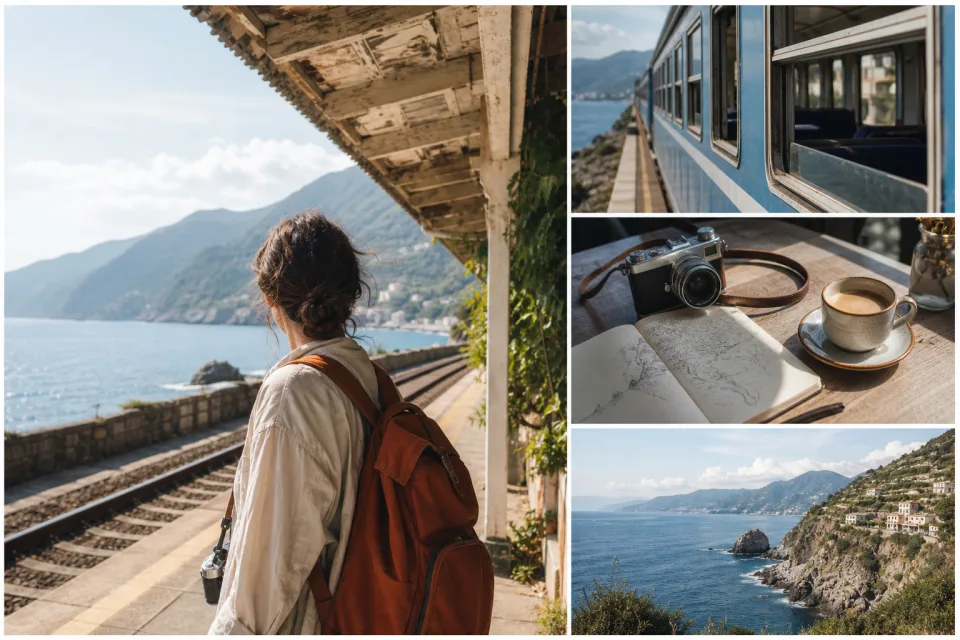
3–5 photos · Feature layout
Let one wide view establish the destination, then use smaller photos for transport, food, details, or people. A feature layout gives a short travel recap a clear starting point.
Collage cells crop photos to fill the available space. Select a cell before export, then use zoom and horizontal or vertical position to keep the subject away from an edge.
 BeforeAfter
Choose the photo that needs a different frame.
Adjust the zoom until the important subject has enough room.
Reposition the photo horizontally or vertically.
The editor keeps the workflow short, while still letting you control the layout and framing of every photo.
Choose 2–9 photos, then use the photo rail to select, remove, or move each image earlier or later.
Pick an equal grid or a feature-photo arrangement. The layout strip shows options made for the number of photos you added.
Select a cell, zoom in when needed, then move the photo horizontally and vertically until the important subject is clear.
Set the canvas ratio, spacing, and JPEG or PNG output, then create the final 1600-pixel collage and download it.